I still hate LaTeX, but I thought I’d share two tricks I found that help make syntax trees in forest look a little prettier.
Looseness and cropping
Sometimes the contours of your arrows don’t come out as “rounded” as they could be and you’ll want to “let out the slack” a little.
\begin{forest}
    [A, name=start [B, name=end][C]]
    \draw[->, solid] (start) to[out=west, in=west] (end);
\end{forest}

The parameter that does this is called looseness. It defaults to 1, and bumping it up even a skosh to like 1.5 makes your arrows rounder and smoother.
\begin{forest}
    [A, name=start [B, name=end][C]]
    \draw[->, solid] (start) to[out=west, in=west, looseness=1.5] (end);
\end{forest}

Often, when you use loose arrows, or if you’re manually messing with the Bezier curves yourself, LaTeX will put a bunch of whitespace next to your tree. I’ve given the above tree a border to show you how much whitespace it gave me. I suspect it has to do with the “control points” of the Bezier curve, which I guess have to be within bounds of the drawing? Here’s how to crop it out.
\begin{adjustbox}{trim=0.8em 0 0 0,clip}
    \begin{forest}
        [A, name=start [B, name=end][C]]
        \draw[->, solid] (start) to[out=west, in=west, looseness=1.5] (end);
    \end{forest}
\end{adjustbox}

Hiding overlaps
I’ve never actually seen anyone do this, as I suspect that using tricks like looseness to avoid overlapping are more popular. But here’s how you can hide the portion of an arrow that overlaps another part of your tree.
Outside of your forest environment, you start by calling these three lines:
\pgfdeclarelayer{one}
\pgfdeclarelayer{two}
\pgfsetlayers{one,two,main}
These create three “layers” that stack vertically: one on the bottom, two on top of that, and main on top of that. (main is available by default.)
Whenever you draw something “normally”, it goes on the main layer, and you draw on the other layers using \begin{pgfonlayer}{one}, for example.
\begin{forest}
    [A, name=start [BBBBB [D][E, name=end]][C]]
    before drawing tree={
        \begin{pgfonlayer}{one}
            \draw[->, solid] (start) to[out=west, in=135] (end);
        \end{pgfonlayer}
        \begin{pgfonlayer}{two}
            \fill[red] (-1.2,-1.4) rectangle (-0.8,-0.95);
            \fill[red] (-1,-1.7) rectangle (-0.8,-1.9);
        \end{pgfonlayer}
    }
\end{forest}
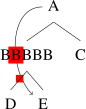
The way this works is I draw the arrow on the very bottom - layer one. Then, I draw rectangles above the arrow on layer two. With precise positioning I can cover up the parts of the arrow I need to. The tree goes on the very top - layer main - so that nothing in the tree gets covered up.
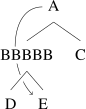
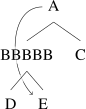
The image above, of course, shows you where the rectangles are by making them a bright, can’t-miss-it red. But look what happens when you make the rectangles white, or even white with opacity = 0.7 etc. This assumes you’re using a white background - I don’t have it in me to figure out how to get LaTex to actually erase the arrow!
Thank you to Lauren Ackerman and Daniel Currie Hall!